For clients
Client guide: feedback with the Chrome extension
For clients. Add the feedback bar to Chrome once, then click what looks wrong on the site, say it in your own words and send. Pictures can go with it.
The feedback bar is a small add-on for Chrome (or Edge) on a computer. You add it once; after that it shows up on your site, only for you, whenever you're signed in.
Prefer to watch? Two one-minute videos show the setup and a first comment.
On a phone, an iPad or in Safari? Ask the team for a review link instead: Giving feedback from a review link.
1. Add it to Chrome
On Your feedback, press Add it (or open Connect the Chrome extension from the menu). You get this page:
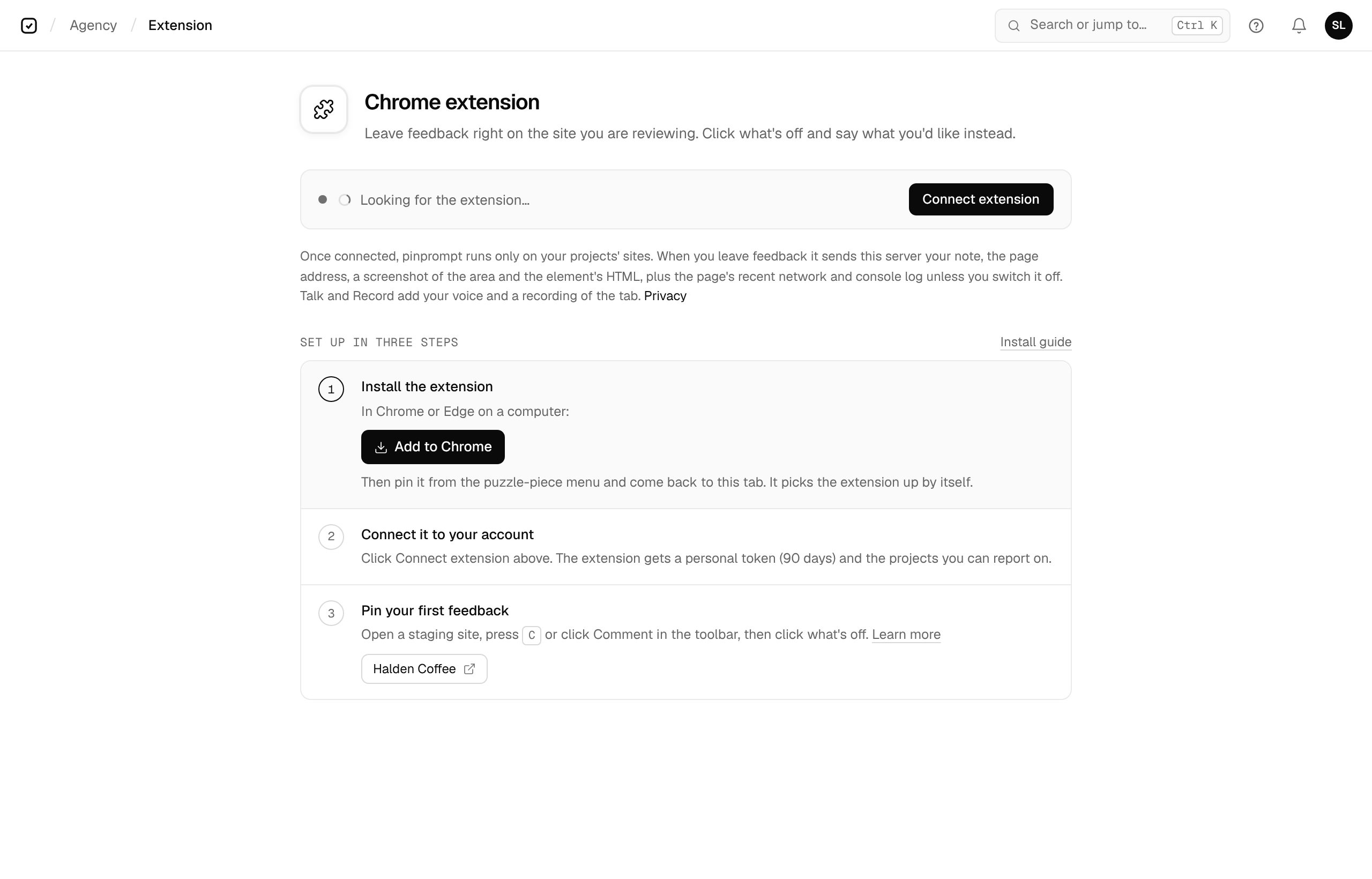
- 1.Press Add to Chrome. The Chrome Web Store opens; press Add to Chrome there and confirm. If you see download steps instead, use the review link your team sent, or follow the steps on that page.
- 2.Click the puzzle piece at the top right of Chrome and pin pinprompt, so it's always in reach.
- 3.Come back to the page: it connects by itself (if it doesn't, press Connect extension). The first step on Your feedback ticks itself.
2. Open the site
Press Open the site on Your feedback. A small black bar appears at the bottom of the page, with a tip the first time:
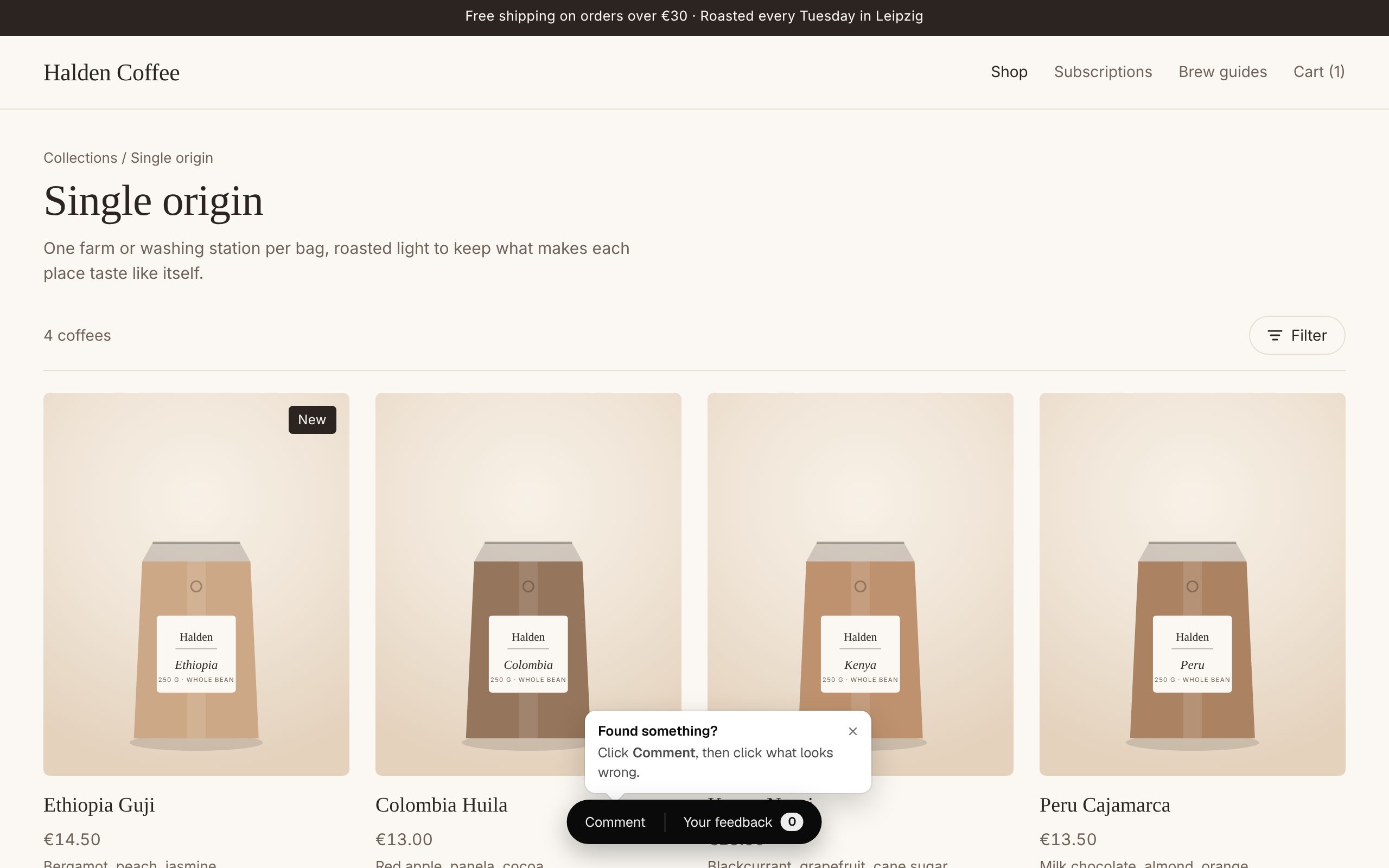
3. Point at what looks wrong
- 1.Press Comment (or the C key).
- 2.Move over the page: the part under your mouse gets a blue outline. Click the thing you mean, like a photo, a price or a button.
- 3.Say what's wrong and what you'd like instead, the way you'd tell a colleague. "The price is hard to read on this photo, could it be darker?" works better than "fix this".
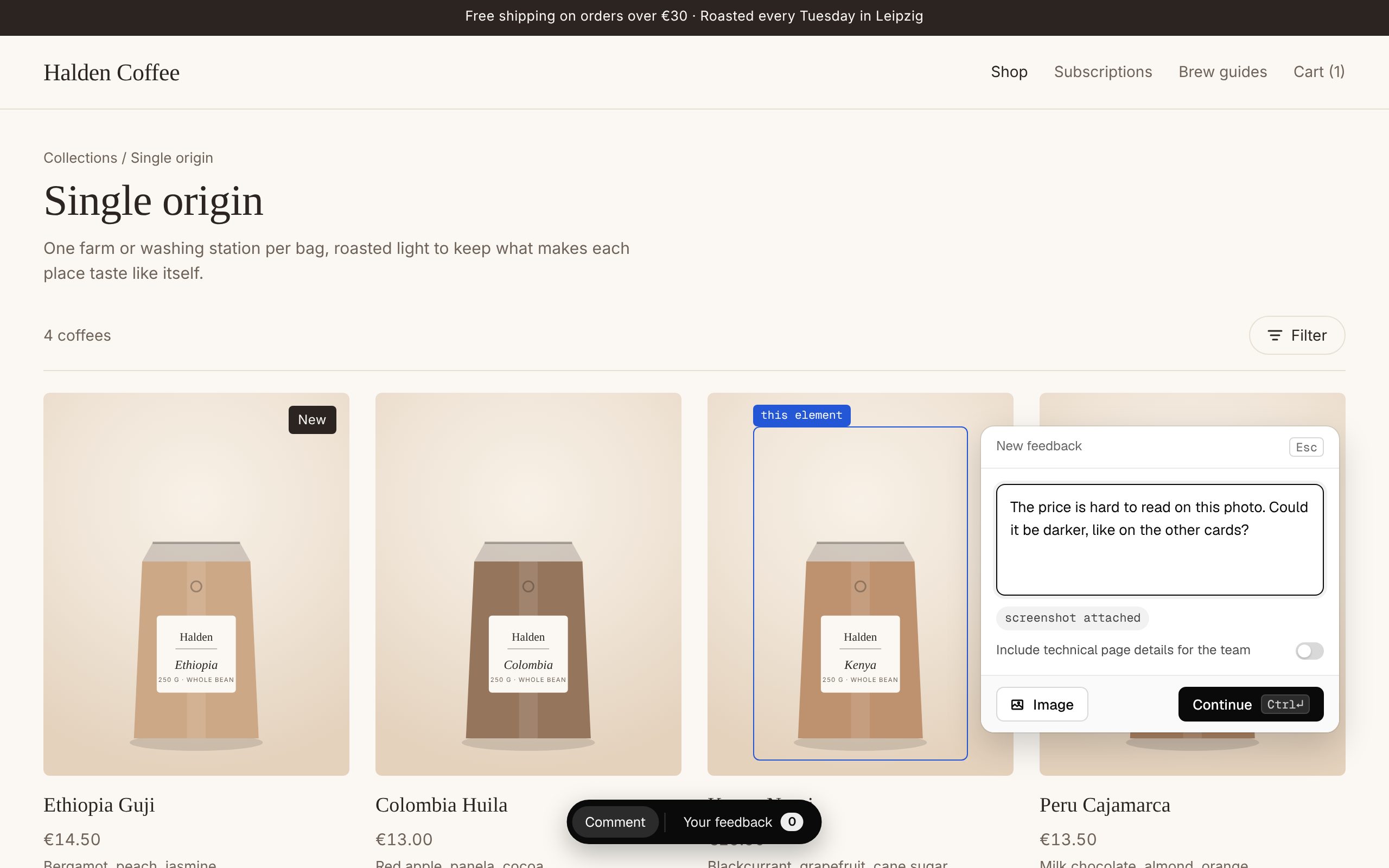
A screenshot goes with it automatically. Changed your mind? Esc closes it, and your note is kept for the next time you press Comment on that page.
Show what you mean with a picture. Paste an image into the note, drop one on it, or press Image: a screenshot of the old site, a photo, a sketch. Up to 3 per comment, and you can add more later on your report.
No Image button? Your copy of the extension is older than the pictures. Add them on your report in Your feedback instead, or ask the team for the latest version.
4. Check and send
If your agency set the project to Just comment, press Send and you're done: your note goes as it is. Otherwise, press Continue. You see a short title and your words. Sometimes there is a quick question, like which screen size you mean: answer it with one click. Then press Send.
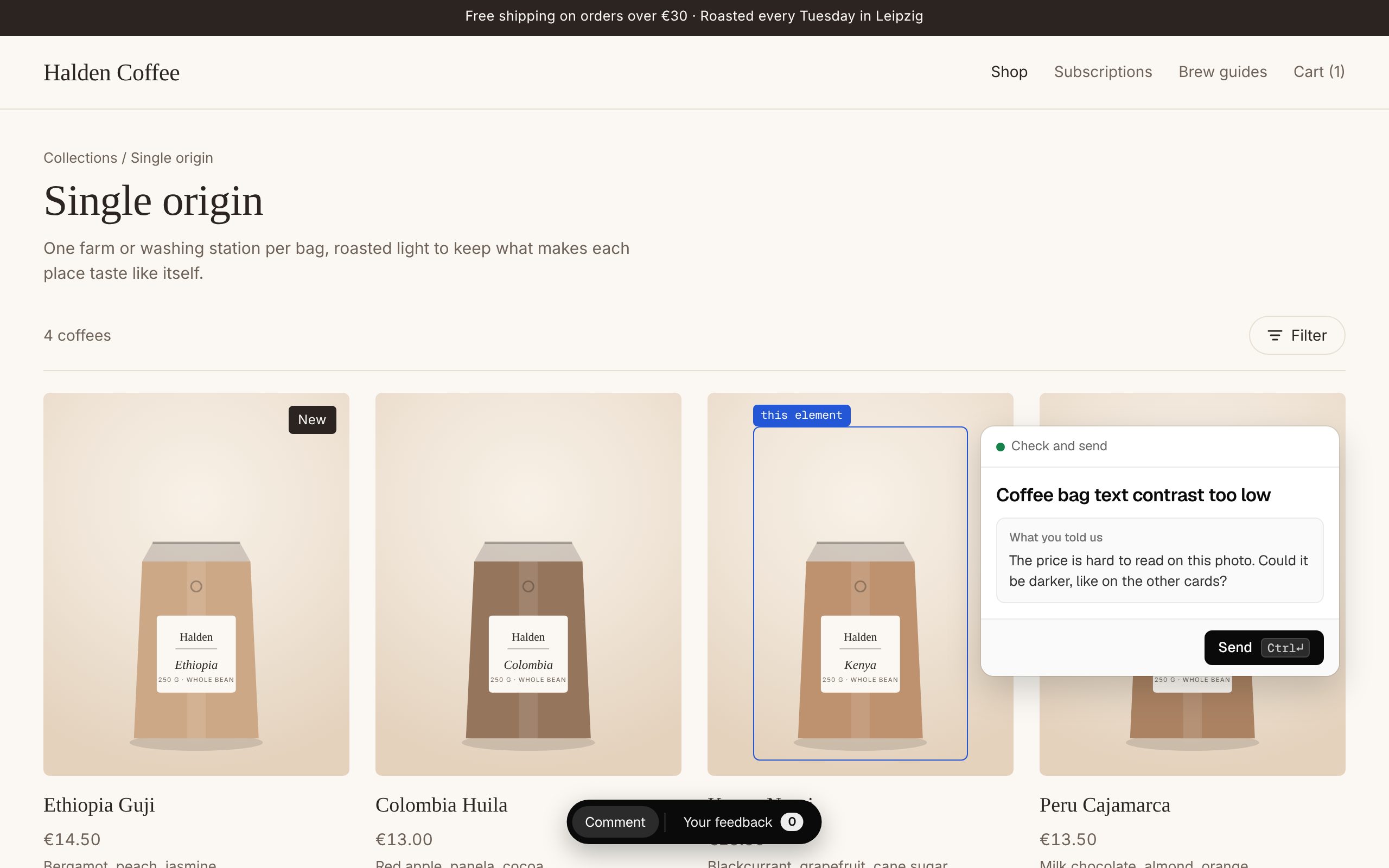
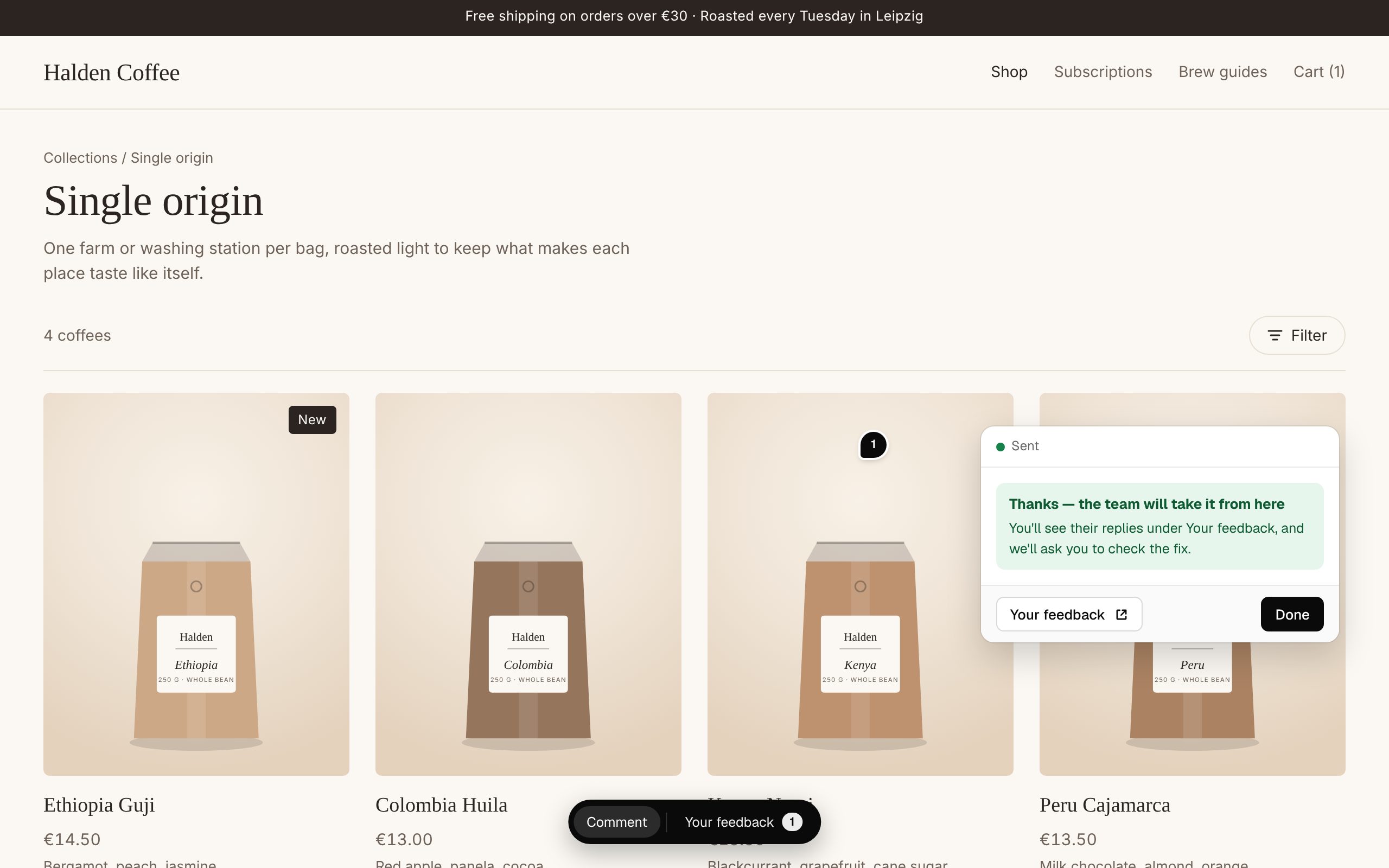
A numbered pin stays on the spot so you can see what you've already reported. Your feedback on the bar lists everything you sent.
Tips for feedback that gets fixed fast
- One thing per comment. Three problems on one page are three comments.
- Say what you expected. "Should say Free shipping over €40" beats "wrong text".
- Click the exact thing. The outline shows what you'll pin. Point at a button or a heading and you get that button or heading, not the whole section around it.
- Seeing it on a small screen? Make the window narrower first, so the screenshot shows what you mean.
If something gets in the way
- No bar on the site? Make sure the extension is connected (the extension page says so) and that you opened the site from Your feedback.
- "Your note is still here, so try again": the connection dropped. Press Send again; it won't send twice.
- Sent one by mistake? Click its pin and the bin at the bottom of the card. You can delete your own feedback until the team starts on it.