For clients
Client guide: getting started
For clients. What pinprompt is, the invite email, and signing in. Point at what looks wrong on your new site and the team takes it from there.
The team building your site uses pinprompt to collect your feedback. Instead of writing long emails with screenshots, you open the site, click the thing that looks wrong and say what you'd like instead, in your own words. The team sees exactly what you saw, fixes it, and asks you to check.
You don't need to know anything about how websites are built. It takes about two minutes to get going. The short version, on one page: Giving feedback on your new site. Prefer to watch? It has two one-minute videos: getting set up, and giving feedback.
1. Open the invite email
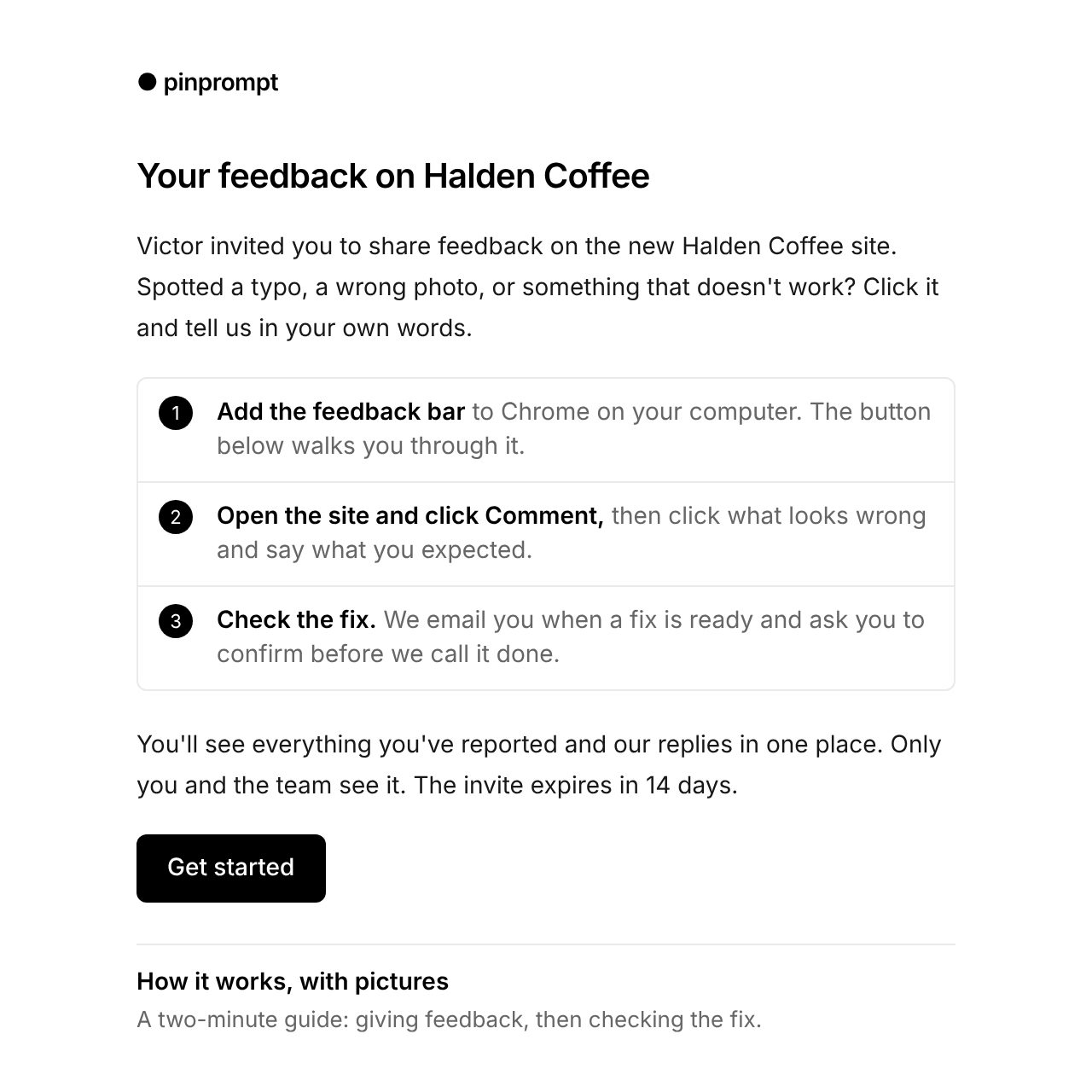
You get an email called "(Someone) would like your feedback on (your project)". Press Get started. The link is just for you and works for 14 days; if it ran out, ask the team for a new one.
2. Tell us your name
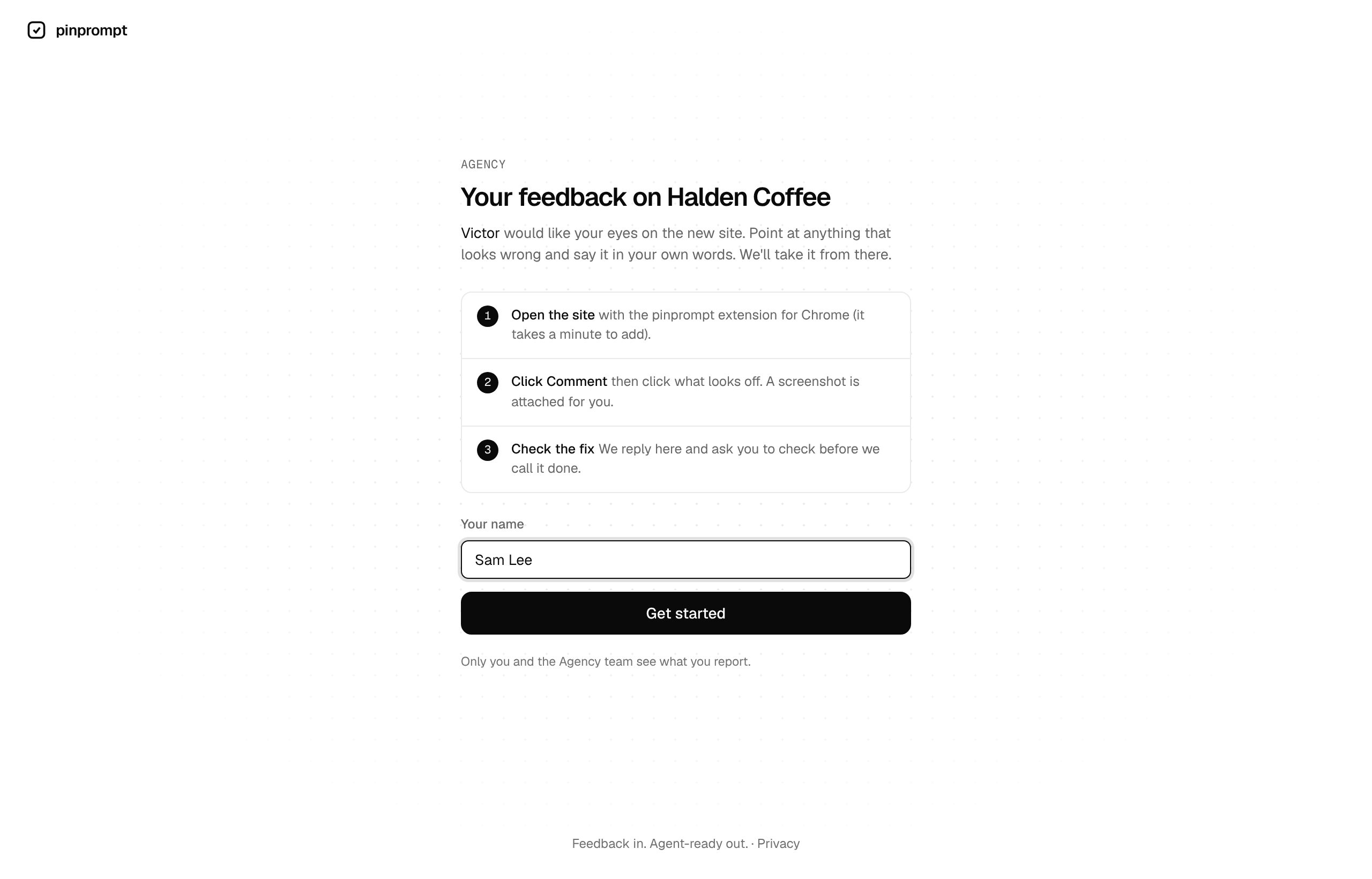
The invite page asks only for your name. Press Get started and you're in. There is no password to make up.
3. You land on "Your feedback"
This is your page. Until you've sent something, it shows two or three short steps, each with the one button you need. The team picks which way you'll give feedback; you'll see one of these:
- Add the feedback bar: a small Chrome add-on, once, on your computer. Giving feedback with the Chrome extension
- Open the site with nothing to install, in any browser, also on your phone. Giving feedback from a review link
- Give feedback inside your Sanity Studio, if you edit your content there. Giving feedback in Sanity Presentation
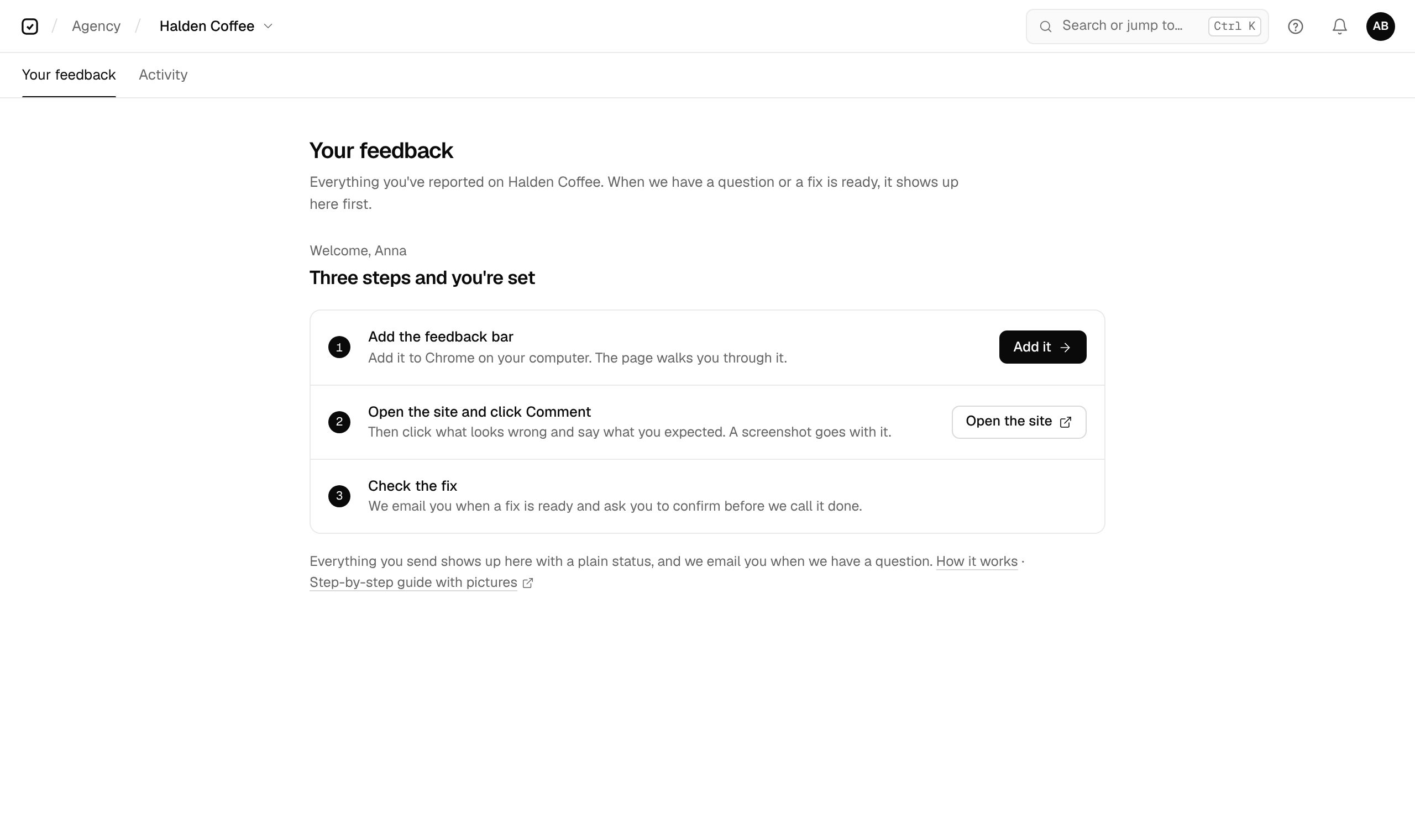
Later, everything you've sent is listed here with a plain status, and the team's replies. When a fix is ready you check it: Checking a fix.
Signing in again later
Go to the same address and type your email. We email you a sign-in link: open it on the same device and press Sign in. No password. If your team set it up, Continue with Google works too.
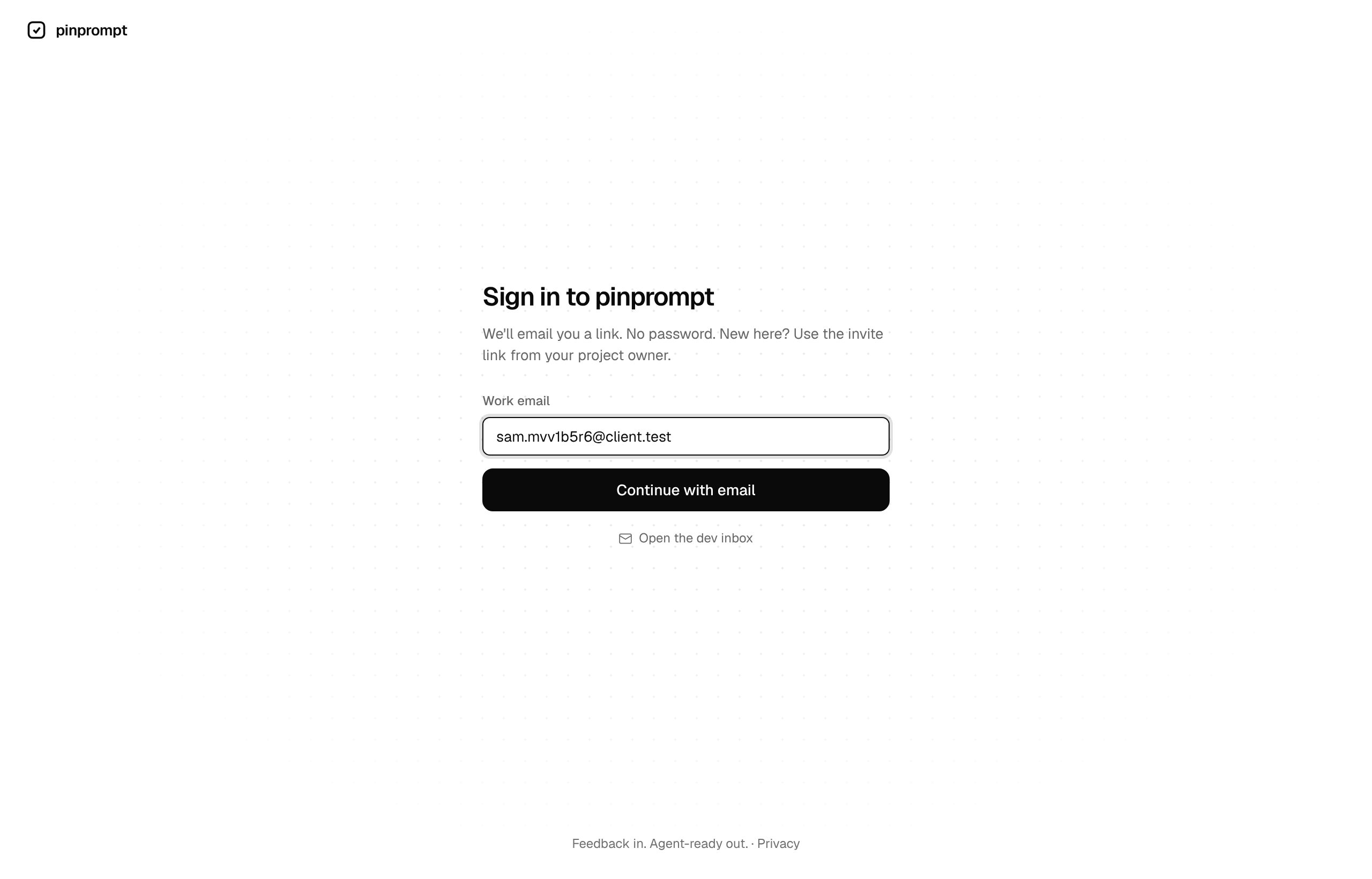
The email didn't come? Look in your spam folder, wait a minute, and try again. Sign-in links work once and for a short time.
Good to know
- Only you and the team see your feedback. You see your own reports and the team's replies to you, nothing else.
- The screenshot is of what you pointed at. The feedback bar hides things like email addresses, phone numbers and card numbers before the picture is taken.
- The feedback bar shows only for you. Other visitors to the site never see it.
- Questions? Reply to any email from the team, or write in the conversation on one of your reports.