For teams
Invite a client
What a client gets when you invite them, from the email to their first comment, and what they can and can't see.
Clients are the people you build the site for. They join a project with the Client role, see plain words only, and need no training: the invite walks them through it.
Invite them
In the project, open Settings → Team, type or paste their email, pick Client and send. Pasting a list of addresses gives one row each; hidden characters from the copy are taken out, and an address that's still wrong says what's missing (for example has no @). A note under the rows says what they will get. You can also copy the link and send it yourself.
What the client gets
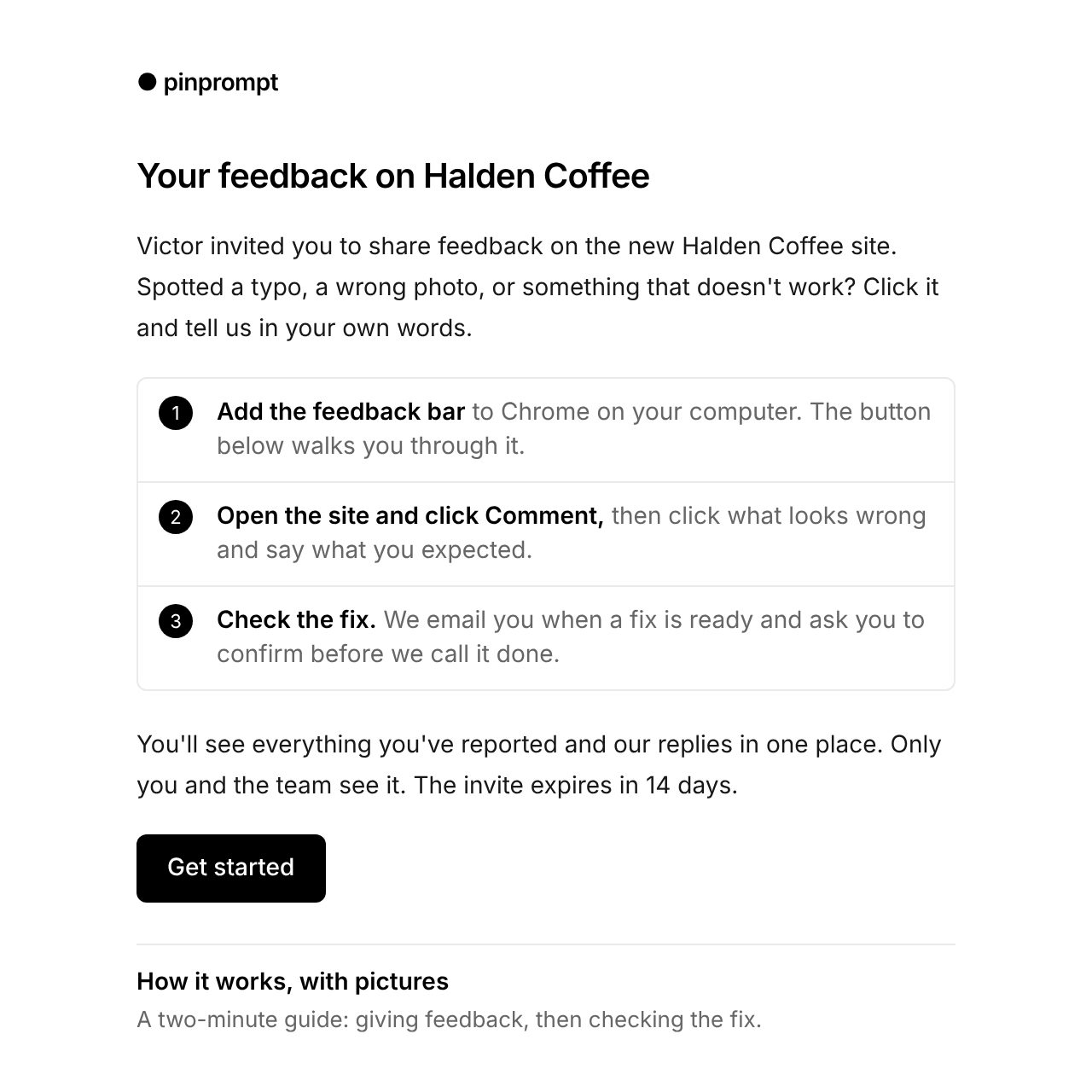
- 1.An email in plain words. "Your feedback on (project)", one Get started button and three numbered steps: add the feedback bar to Chrome on their computer, open the site and click Comment, then check the fix when you email them. No roles, agents or technical words.
- 1.A short sign-up. The invite page asks only for their name.
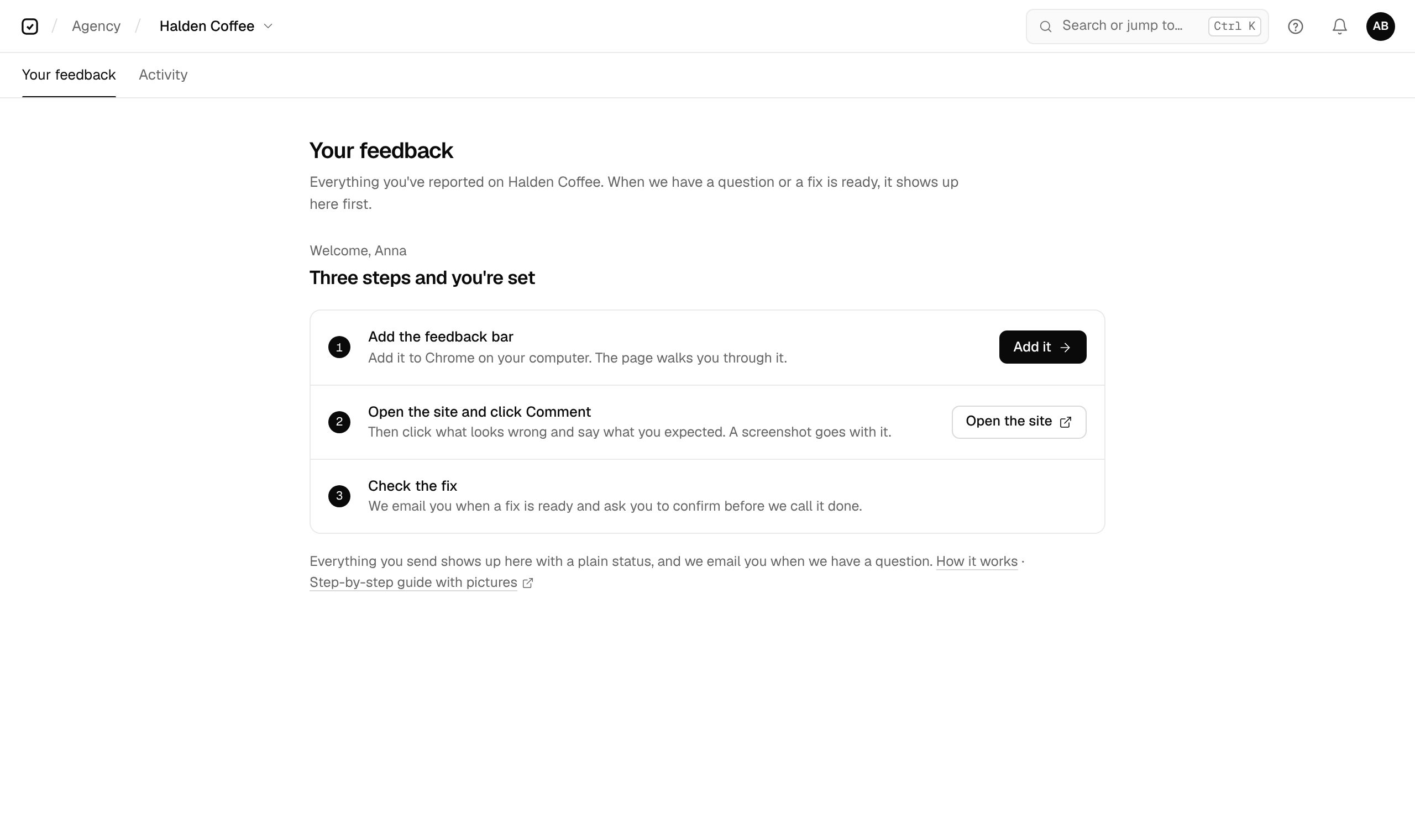
- 2.A welcome on "Your feedback". Until they've reported something, their page is the same three steps, with Add it (the extension page) and Open the site (your staging URL). The first step ticks itself once the feedback bar is connected. Their home page shows the same three steps as a checklist.
- 1.A tip on the site. The first time the feedback bar appears, a tip points at Comment: "Found something? Click Comment, then click what looks wrong." It goes away for good once they dismiss it or start a comment.
After their first report, "Your feedback" lists what they sent with a plain status (Received, We have a question, Being fixed, Ready for you to check, Done) and an Open the site button. They get an email when you ask a question or a fix is ready to check.
Send them the client guides
The invite email has the steps and links a short page for clients, Giving feedback on your new site: public, no sign-in, with real screenshots and no agency name, so it works for any client. Behind it are five guides you can send on their own:
| Guide | For |
|---|---|
| Getting started | The invite email, signing in, what pinprompt is |
| Feedback with the Chrome extension | Installing from the Chrome Web Store, pinning, pictures, sending |
| Feedback from a review link | Projects with Feedback without the extension: any browser, phones |
| Feedback in Sanity Presentation | Clients who edit in Sanity Studio |
| Checking fixes and signing off | Statuses, answering, Yes it's right / Not yet |
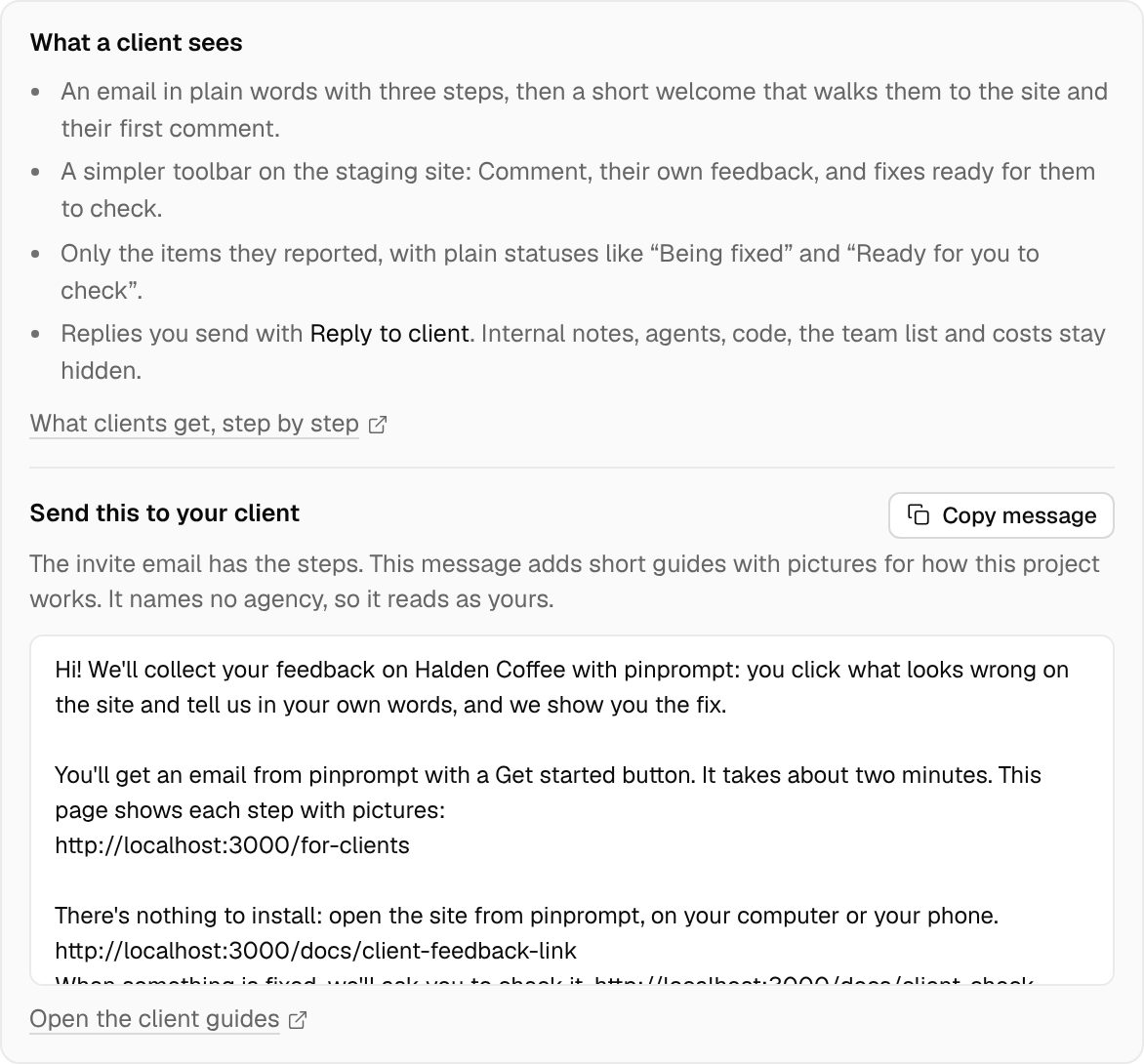
When you pick Client on the Team page, Send this to your client under the invite rows has a message to paste into your own email or chat, with the links that fit the project (the review link guide when the review script is on, the Sanity guide when a Studio is listed). Copy message copies it.
Clients find the same guides from Your feedback (a Step-by-step guide with pictures link under the welcome, Checking a fix under their list), the For clients help article, and Ctrl K (How to give feedback). On a project where they're a client, Ctrl K searches only the client guides and lists none of the team's commands.
What clients can and can't see
| They see | They don't see |
|---|---|
| Their own reports and your public replies | Other people's items, internal notes, the team |
| Plain statuses and "Check the fix" | Specs, agents, code paths, costs, pull requests |
| A simpler toolbar on the site | Console and network details (off unless they turn them on) |
More on roles: Roles and permissions.
Good to know
- The staging URL in Settings → General is what Open the site opens. A project with only a wildcard preview pattern has no button; send clients the address yourself.
- With the extension, clients need Chrome or Edge on a computer. To spare them the install, turn on Feedback without the extension: the email and welcome then have two steps and work in any browser.
- The extension comes from the Chrome Web Store: Add the feedback bar is one click on Add to Chrome, then Connect.
- Invites expire after 14 days. New link on the Team page sends a fresh one.