For reviewers
Edit text on the page Beta
Type the wording you want straight into a heading, paragraph or button on the site. Only your screen changes; the item carries the exact old and new text, so an agent can apply it word for word. Beta, off until a project owner turns it on.
Beta: built and tested end to end, with little real use so far. It and stays off for every project until an owner turns it on. The extension part needs extension 0.2.4. See What works today.
Copy changes are the most common feedback, and the hardest to describe: "the second sentence, but shorter, and say Tuesday". With Edit text you type the new wording right into the page, and the item carries the exact old and new text. It's a copy change your agents can apply character for character.
This is a beta. It is off for every project until an owner turns it on, and the first version edits plain text only.
Turn it on
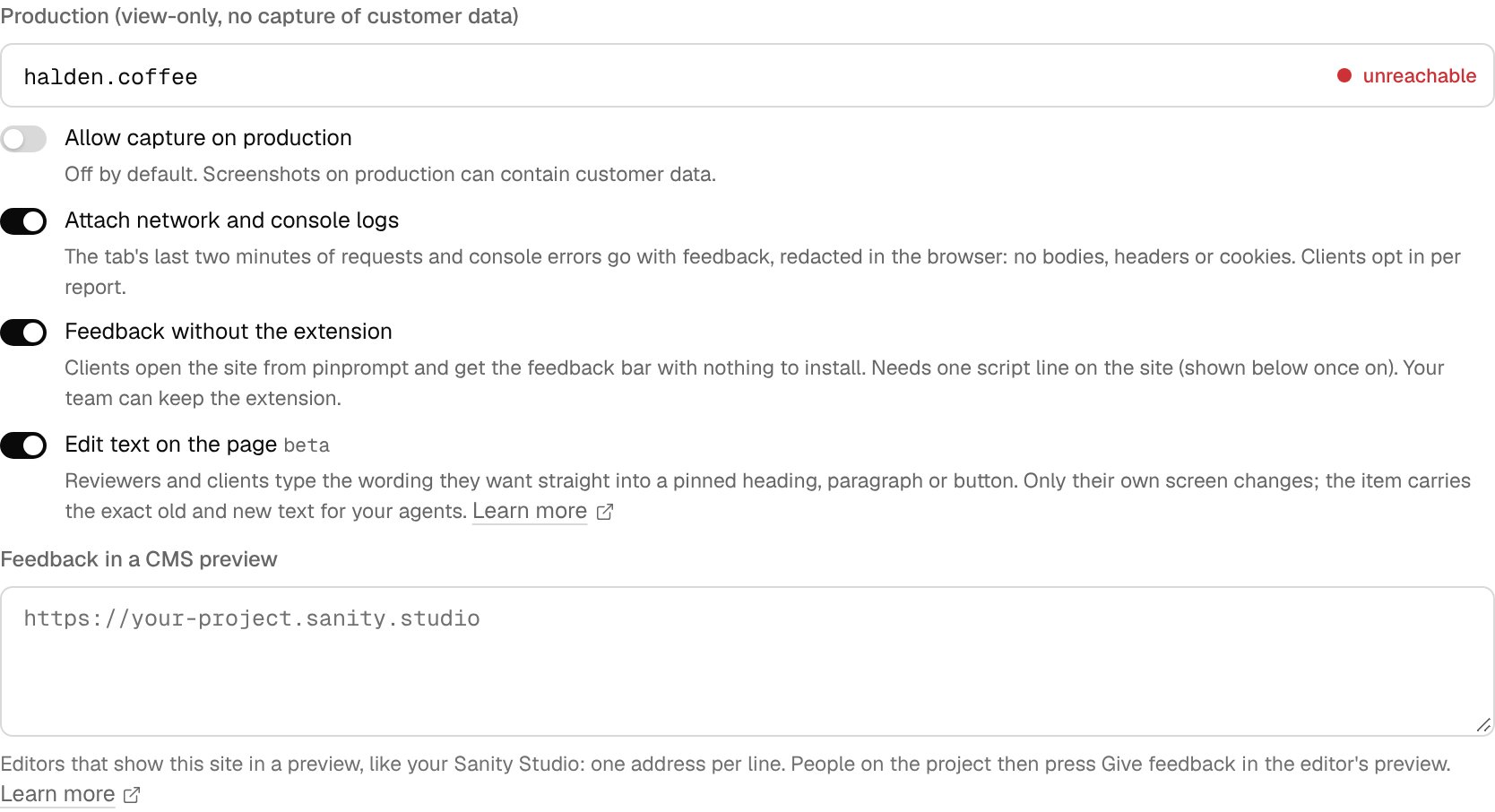
In Settings → General → Clients, a project owner turns on Edit text on the page and saves. Only owners can turn it on or off. Other people see the switch but can't change it, and an app connected over MCP can't turn it on. It works for every reviewer on the project, the team and clients alike, in the Chrome extension, the review link (Feedback without the extension) and Sanity Presentation.
Edit a text
- 1.Press
C(or Comment) and click the heading, paragraph or button you want reworded. Hold Alt to pick exactly that element when the outline takes the whole card. (A big section such as a hero never takes the outline: you get the heading or button you point at.) - 2.In the popover, press Edit text. The text on the page becomes editable, with all of it selected.
- 3.Type the new wording. Enter finishes (Shift+Enter adds a line break in text that has several lines), and so do Esc and Done.
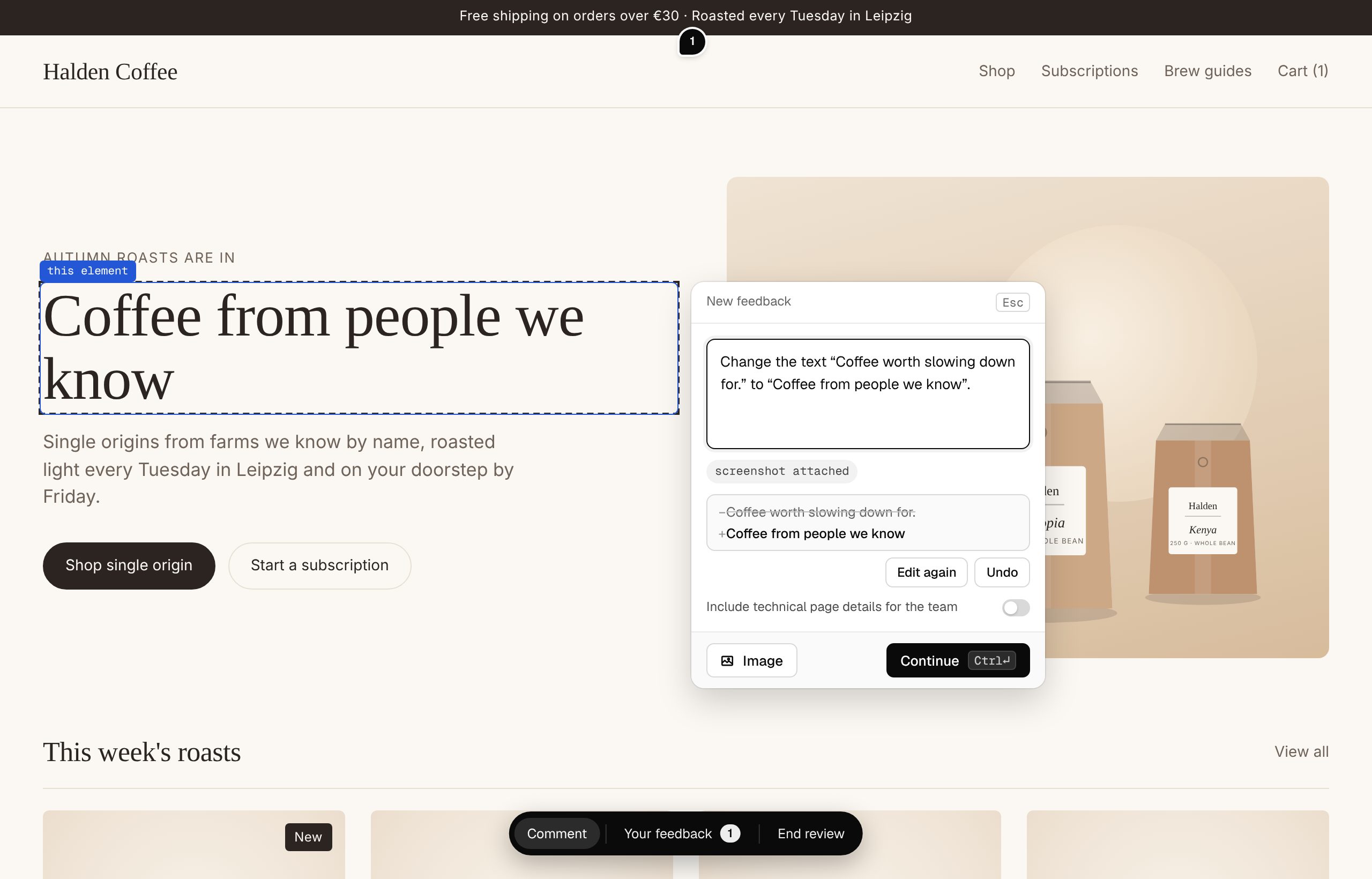
- 4.The popover shows the change: the old text struck through and the new text below it. If you left the note empty, it now says Change the text "…" to "…". You can add why, or leave it as it is.
- 5.Draft and send as usual. Edit again changes the wording, and Undo puts the text back and clears the note pinprompt wrote.
Only your screen changes. pinprompt shows a copy of the element in its place, and the site's own element stays untouched underneath. Nothing is saved to the site or the CMS. The page goes back to how it was when you draft (so the draft's checks run against the real page), when you close the popover, and when you leave the page.
When you pinned a whole card, Edit text edits the line of text you clicked inside it. When there's nothing to edit, the button is greyed out and says why:
- the element holds images or form fields: pin the text itself;
- it's a whole section (more than about 30 elements or 2,000 characters): pin one heading, paragraph or button;
- the text is masked (Sensitive data): masked text can't be edited.
What the item carries
- The expected result is the new text, exactly as typed: The text reads exactly the new text the reporter typed on the page, with the old and new text in the item's text change. The item is filed as a copy change, with the title Change "…" to "…". No question asks what it should say, because you typed it.
- One exact check: The pinned element reads exactly "…". It runs once on the page before the item is filed (it fails there, since the page still shows the old text), and it's the check in the exported Playwright test. If you edited one line inside a card, the check says shows "…" instead. New text longer than 200 characters, with line breaks, with quote marks or with a masked value in it gets a check that a person compares by eye. Removing a text entirely checks that the old text is gone.
- The item page shows the change as a diff under Expected, with Copy new text.
- Both texts are masked like all page text: email addresses, phone, card and IBAN numbers show as
[email],[phone]and so on, in the browser and again on the server. The new text starts as the page's own text, so an address you only typed around is still the page's. To add a new address, write it in your note. The server keeps the edit only while the project has the setting on, so an older extension or a script can't add one.
What agents get
The spec has expected.text_edit with before and after (empty after means remove the text) and, for a line inside the pinned element, its selector. Agents over MCP (get_spec) also get a Text change section in the prompt: replace the old text with the new text exactly, change nothing else about the element, and if the text comes from a CMS, say so instead of hard-coding it. Both texts are marked as coming from the page and the reporter, never as instructions.
Not in this version
- Styles (colour, size, spacing), links, bold or other rich text: the edit is plain text, and the copy shown while you type drops links.
- More than one element per pin. Pin each text you want changed.
- Writing the change back to the site or to Sanity. An agent or a person makes the change, and you check it as usual (Check a fix).
- Talk and Record: Edit text is in Comment only.