For teams
Feedback in Sanity Presentation Experimental
Clients and editors press Give feedback in Sanity Studio's Presentation and pin feedback on the preview, with nothing to install. Uses the review script and the Studio plugin.
Many clients look at their site inside Sanity Studio's Presentation tool, where the site sits in a preview frame next to the content. With this set up, they press Give feedback in Presentation's top bar and get pinprompt's feedback bar on the preview: click what looks wrong, write a note, send. Nothing to install, and the screenshot shows the site only, never the Studio around it.
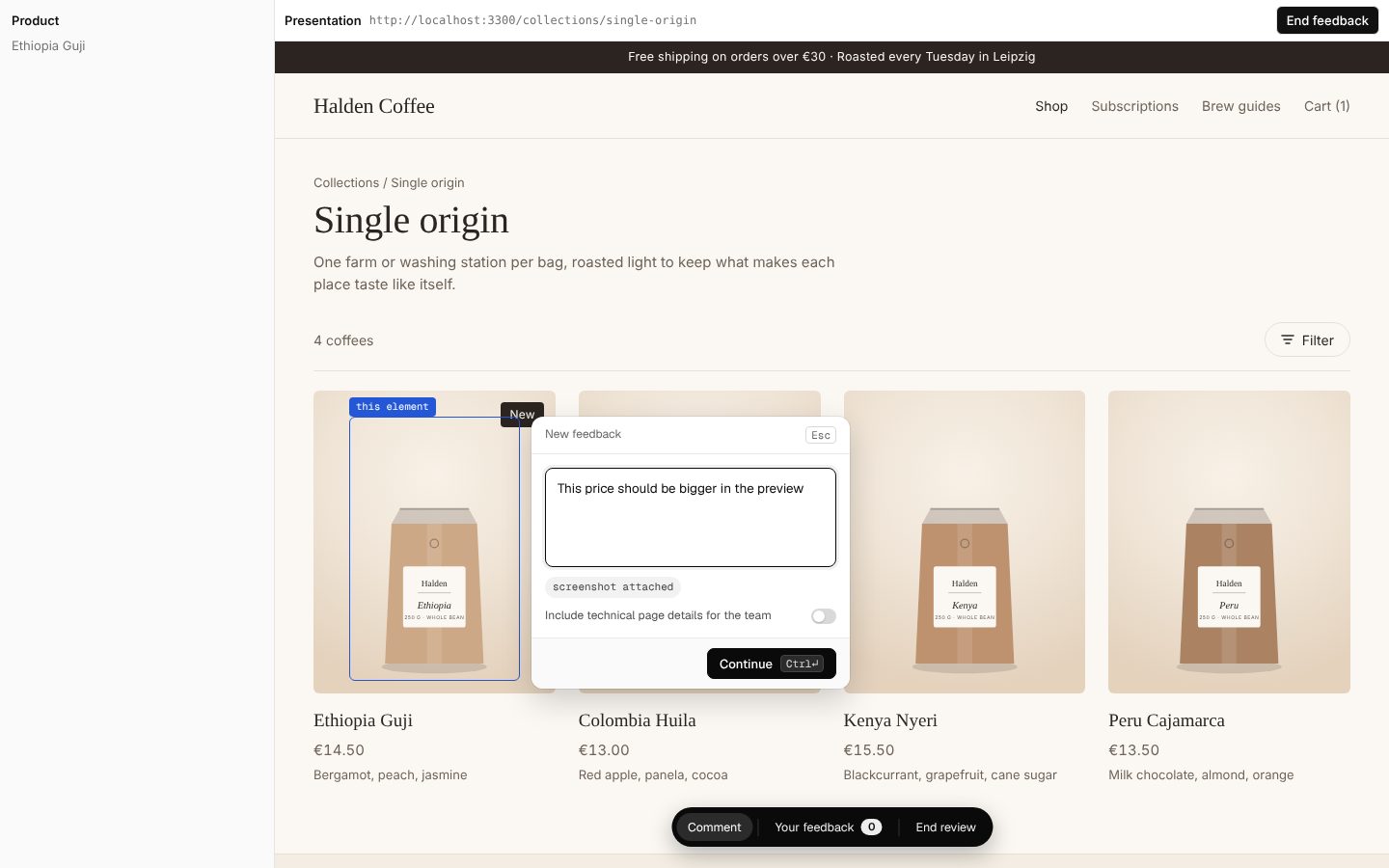
The Chrome extension can't do this: it only works on the page itself, not inside another site's frame. This uses the review script instead.
Set it up (once per project)
You need three things. They work for any Studio and any site, hosted anywhere.
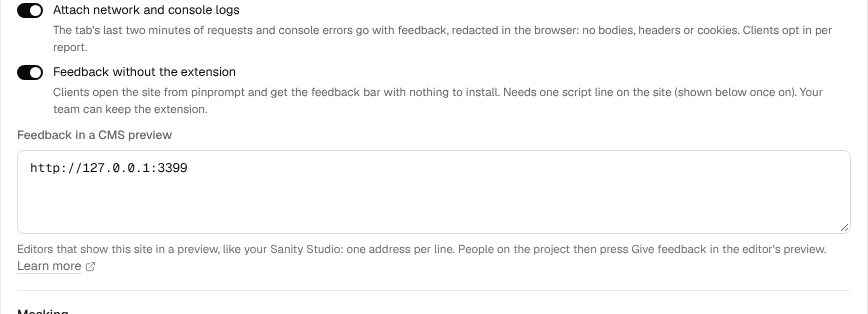
- 1.The review script on the site. In the project, switch on Feedback without the extension in Settings → General and add the script line to the site, as in Feedback without the extension. The site Presentation shows must be one of the project's sites (staging, PR previews or production).
- 2.The Studio's address in pinprompt. Under the same switch, Feedback in a CMS preview lists the editors that may start feedback, one address per line, for example
https://acme.sanity.studio(or the address of a Studio inside your site, likehttps://www.acme.com). Save. Up to 5, each a full address (no*wildcards);http://localhost:3333works for a Studio on your own computer.
- 1.The button in the Studio. Install the Studio plugin (
npm install sanity-plugin-pinprompt) and pass it as Presentation's header (Studio 3.65 or later):
   // sanity.config.ts
   import { presentationTool } from "sanity/presentation";
   import { pinpromptPresentation } from "sanity-plugin-pinprompt";

   export default defineConfig({
     // …
     plugins: [
       presentationTool({
         previewUrl: "https://staging.acme.com",
         components: { unstable_header: pinpromptPresentation({ url: "https://<your pinprompt>" }) },
       }),
     ],
   });
It keeps Presentation's own header and adds the button. If you already customised the header, render <PinpromptFeedbackButton url="…" iframeRef={props.iframeRef} targetOrigin={props.targetOrigin} previewUrl={props.previewUrl} /> in yours. Sanity marks unstable_header as experimental: a Studio upgrade can rename it.
How it works for the client
- 1.In Presentation, they press Give feedback. A small pinprompt window opens. The first time, they sign in there (the invite they accepted already made them a member).
- 2.The window closes by itself and the feedback bar appears on the preview. The button now says End feedback.
- 3.They click what looks wrong and send, exactly as on the site. The feedback lands in the project's inbox with a screenshot drawn from the site, masked as usual (Sensitive data).
- 4.End feedback in the Studio, or End review on the bar, ends it at once, on the server too. Moving between pages in the preview keeps it going.
If they signed in with an emailed link, that link opens in a new tab, so the window can't reach the Studio any more: it says so. Press Give feedback again; signed in now, it goes straight through. If the browser blocks the window, the button says to allow pop-ups for the Studio.
Every member of the project can use it, with a client's rights while the bar is open, whatever their role. Who can see what is the same as for feedback without the extension.
Turning editing off
pinprompt can't take editing rights away in Sanity. For clients who should only look and comment, give them Sanity's Viewer role on the Sanity project; Presentation still shows them the preview. While someone is picking an element, the feedback bar covers the page, so a click pins instead of opening the field in Sanity (not yet checked in a real Studio).
How it stays private
- Only your Studio gets the code. pinprompt's window hands its one-time code only to an address listed under Feedback in a CMS preview. Another site that opens the window gets nothing.
- Only your site, inside your Studio, can use it. The Studio passes the code to the preview frame, addressed to the site's own origin. The site's script trades it for a review sign-in and tells pinprompt which page is around it. pinprompt accepts it only from the project's own sites, framed by an editor the project lists, and only with a code made for that editor. Another page that frames your site gets no bar, even with a real code.
- Opening the window ends nothing. Unlike Open the site, pressing Give feedback doesn't end the person's review in other tabs, so a site that opens pinprompt's window can't end anyone's review.
- The site shows nothing until asked. In a frame the script only says it's there. No bar, no request to pinprompt, until someone presses Give feedback.
- Short-lived and limited. The same review sign-in as feedback without the extension: 2 hours, renewed while the bar is open, never past 8, feedback only.
What it can't do
- Recording and voice notes may not work. The browser only lets a frame share the screen or use the microphone when the page around it allows it, and a recording would show the Studio too. For those, open the site itself from pinprompt, or use the extension.
- The bar runs in the frame only. It doesn't see Studio's panes or fields, and it never changes content.
Status
Built and tested against a stand-in Studio (a page with the real plugin's header and the demo shop in a cross-site frame), in Chrome. Not yet tried in a real Sanity Studio, so try it on a test dataset first. See What works today.